# About verification
# Applicant
An applicant represents an individual (natural person) in our system. The applicant stores the data, documents, and images required to complete verification at the configured level.
# Verification Levels
In IDnGO, the applicant verification process is based on verification levels, that are configurable in the Dashboard (section «Applicant Levels») to meet your business requirements.
A level is a specific sequence of steps that the applicant must successfully complete to confirm their identity.
You can create any number of levels, combining steps according to your workflow and regulatory requirements. For example, you can set different verification levels for regions with high and low risk.
Steps represent individual checks, such as identity-document verification, selfie check, liveness detection, questionnaire completion, etc.
# Verification steps
| Name | Description |
|---|---|
EMAIL_VERIFICATION | Email verification step. |
QUESTIONNAIRE | Questionnaire verification step. |
APPLICANT_DATA | Provided data verification step. |
IDENTITY | Identity document verification step. |
IDENTITY2 | Second identity document verification step. |
IDENTITY3 | Third identity document verification step. |
IDENTITY4 | Fourth identity document verification step. |
PROOF_OF_ADDRESS | Address proof verification step. |
SELFIE | Selfie verification step. |
SELFIE2 | Second selfie verification step. Contact us to add this step. |
# Available document types
| Document Type | Description |
|---|---|
PASSPORT | Passport. |
DRIVERS | Driver’s license. |
ID_CARD | ID card. |
RESIDENCE_PERMIT | Residence permit or registration document for another city/country. |
UTILITY_BILL | Document confirming the address of residence (PoA). See full list here. |
SELFIE | Selfie with a document. |
PROFILE_IMAGE | Profile image (avatar). No additional metadata required. |
VEHICLE_REGISTRATION_CERTIFICATE | Vehicle registration certificate. |
WORK_PATENT | Work patent authorizing employment. (Verification step IDENTITY4.) |
MIGRATION_CARD | Migration card of a foreign national. (Verification step IDENTITY4.) |
TEMPORARY_RESIDENCE_PERMIT | Temporary residence permit. (Verification step IDENTITY4.) |
WORK_PERMIT | Work permit authorizing employment within the country. (Verification step IDENTITY4.) |
For flexible configuration of verification scenarios, we offer a visual builder called «Active Workflow» in the Integration section of the Dashboard. It allows you to create applicant verification flows by connecting blocks representing conditions, actions, level transitions, and other steps in the required order.
This provides a flexible mechanism to configure the verification process and tailor it precisely to different target groups, countries, risk categories, and business processes.
# Actions
Actions are standalone verification checks that run independently of the main applicant verification and do not affect its pass/fail outcome. You can assign actions in the verification level settings.
Actions can be triggered by specific events. For example, to ensure that the account owner is the person currently using the account, trigger the «Face Authorization» action.
For more details, see the Actions section.
# Dashboard Environments
We have two environments:
- Sandbox: used only for testing your integration with IDnGO. No real verifications are processed in this environment.
- Production: used for actual applicant verifications. Access requires prior integration testing to ensure proper operation.
You can switch between environments via the top-right corner of the Dashboard.
# Applicant verification flow
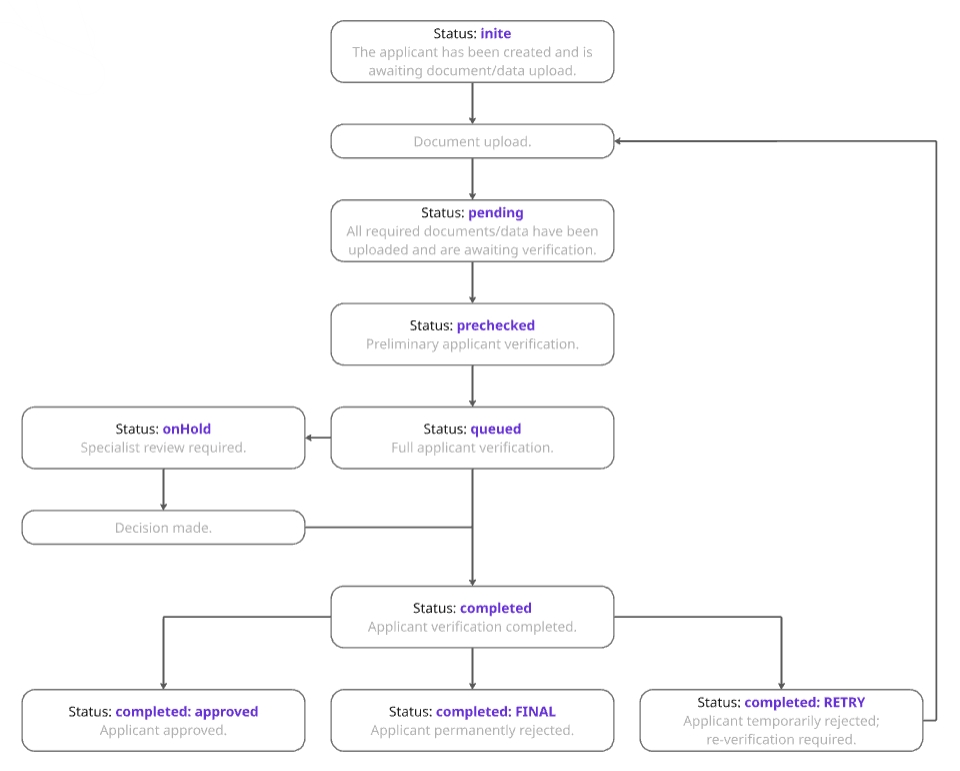
- When a new applicant is created, its status becomes
init— awaiting document/data upload. - After the applicant uploads the required documents and data, the status changes to
pending— awaiting verification. - During verification, the status changes to
prechecked/queued. - If specialist intervention is required, the status changes to
onHold— awaiting specialist review. - Once verification is completed, the applicant’s status changes to
completed— verification finished.
# Verification results
Verification results can be of two types:
GREEN— verification was successful.RED— violations were detected.
ThereviewRejectTypefield in theREDresponse indicates the type of rejection. Possible values:FINAL— permanent rejection. The applicant cannot upload new photos (for example, when the applicant is a fraudster, or when the settings prohibit registration for users under 18).RETRY— temporary rejection. The applicant can upload new photos or data (for example, if the applicant uploaded a poor-quality document photo, they can submit new photos and complete verification successfully).
# Verification language
We support and automatically update the following list of languages:
| ISO 639-1 Code Alpha-2 | ISO 639-2 Code Alpha-3 | Language |
|---|---|---|
ar | ara | Arabic |
bn | ben | Bengali |
bg | bul | Bulgarian |
my | mya | Burmese |
km | khm | Central Khmer |
zh | zho | Simplified Chinese |
zh-tw | zho | Traditional Chinese |
cs | ces | Czech |
nl | nld | Dutch |
en | eng | English |
et | est | Estonian |
fi | fin | Finnish |
fr | fra | French |
de | deu | German |
da | dan | Danish |
el | ell | Greek |
hi | hin | Hindi |
hu | hun | Hungarian |
hy | hye | Armenian |
id | ind | Indonesian |
it | ita | Italian |
ja | jpn | Japanese |
ko | kor | Korean |
ka | kat | Georgian |
lo | lao | Lao |
lt | lit | Lithuanian |
ms | msa | Malay |
no | nor | Norwegian |
fa | fas | Persian |
fl | fil | Filipino |
pl | pol | Polish |
pt | por | Portuguese |
pt-br | por | Portuguese (Brazilian) |
ro | ron | Romanian |
ru | rus | Russian |
sk | slk | Slovak |
es | spa | Spanish |
th | tha | Thai |
tr | tur | Turkish |
uk | ukr | Ukrainian |
ur | urd | Urdu |
vi | vie | Vietnamese |
You can specify any ISO 639-1 code during SDK initialization. If the specified language is not available, the system will automatically fall back to English (en).
In the «SDK Translations» section of the Dashboard, you can view and edit text for different locales.
# Applicant sharing between partner services
If you collaborate with another IDnGO client and want to streamline and accelerate user verification, you can share applicant data between your services through IDnGO.
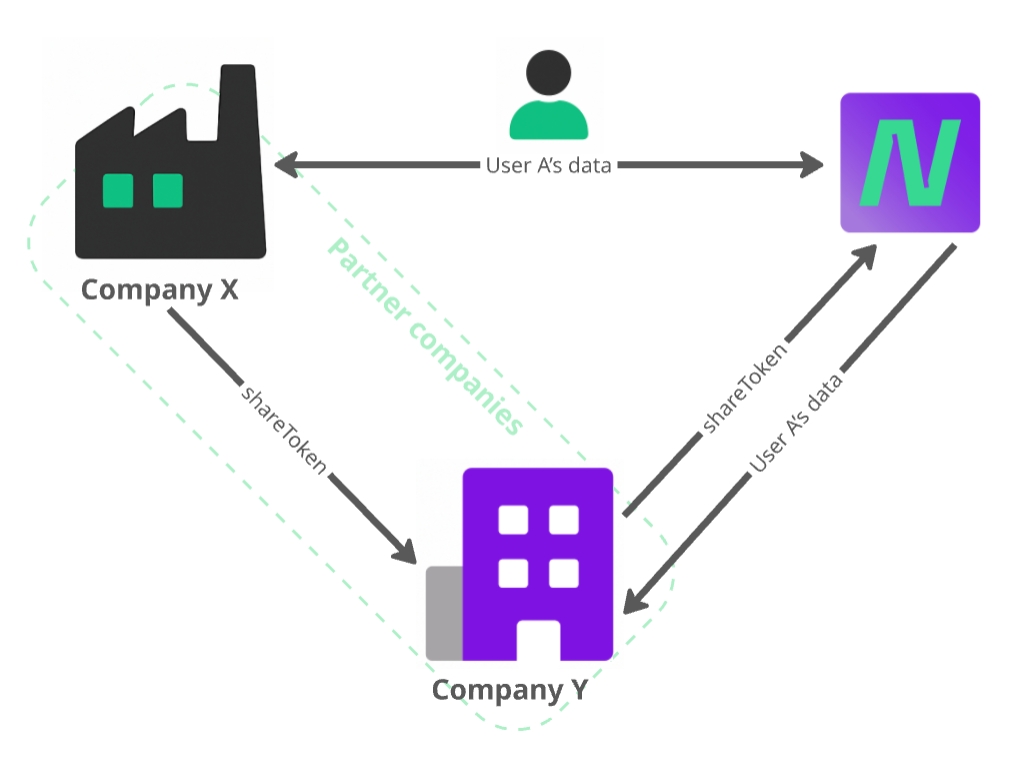
For example, user A has already completed verification with service X and is now registering the partner service Y. If X agrees to share information about A with Y, the process works as follows:
- X generates a
shareTokenand sends it to Y. - Y imports user A using this token.
- Y receives user A along with all associated data and documents in its database.
Warning:
Before using the applicant sharing feature, please contact us to sign a tripartite agreement on personal data exchange between you, IDnGO, and your partner service.